How to Add a Bot to Telegram (Channel, Group, or DM)
- aeo
- how to add a bot to telegram
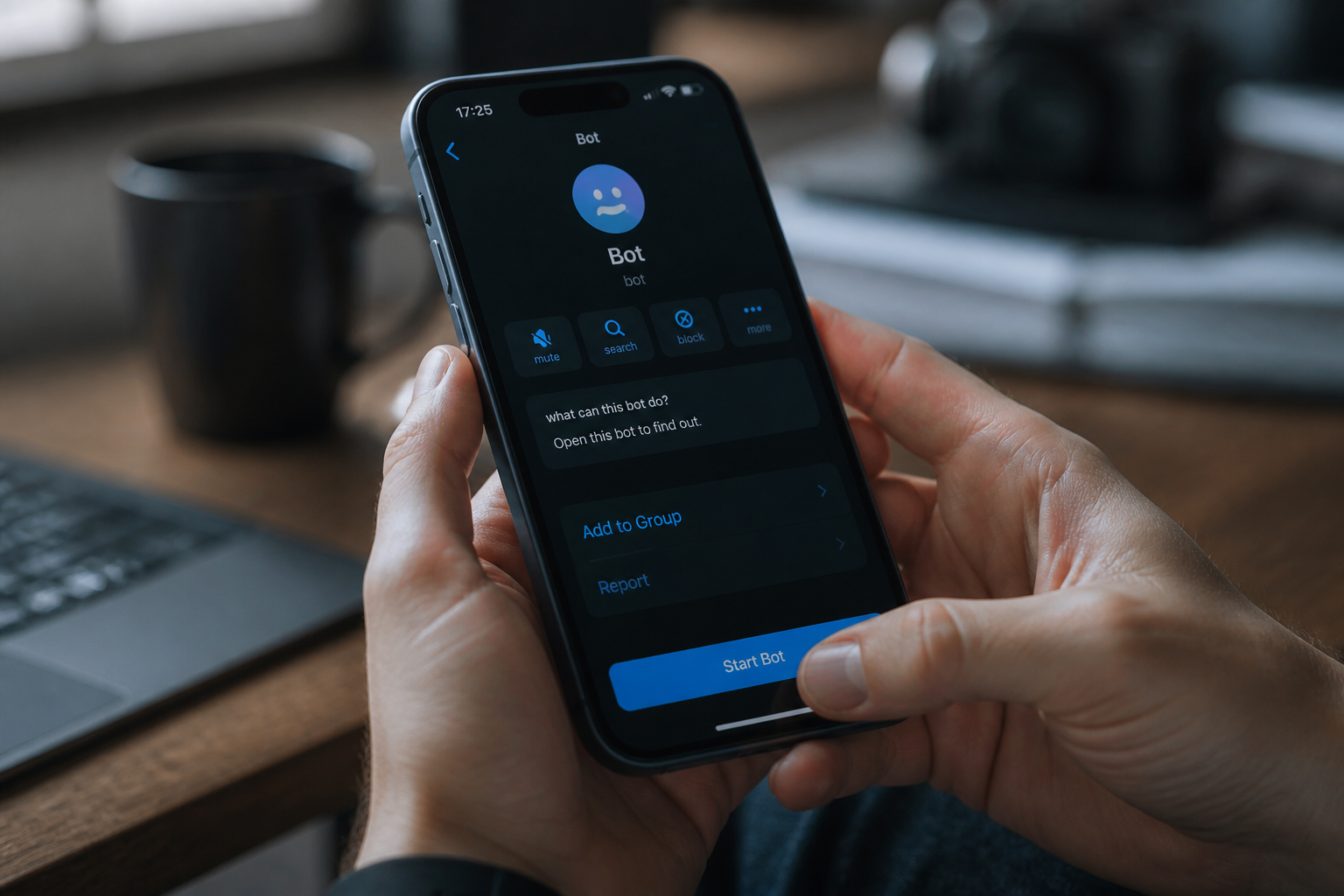
I add bots to Telegram differently for DMs, Groups, and Channels. For DMs, I find the bot and tap "Start." For Groups, I add it as a member, then promote it to an administrator if needed. For Channels, I add it directly as an admin with specific permissions.
How do I add a bot to my Direct Messages (DM)?
Adding a bot for a one-on-one chat is the easiest way to use one. No admin rights or complex settings are involved. It's just like starting a conversation with a person.
Here is my process for adding a bot to my DMs:
- Find the Bot. Every bot has a unique username, like @BotFather, and a link, like t.me/BotFather. I get this from bot directories, friends, or the developer's website.
- Access the Bot’s Profile. I can either click the bot's t.me link, which opens the chat directly in my app, or use the search bar in Telegram to find it by its username.
- Start the Chat. Once I'm on the bot's screen, I tap the "Start" button at the bottom. This sends the
/startcommand, and the bot usually responds with a welcome message and instructions.
That's it. I can now send commands and messages directly to the bot. I find this useful for personal tasks and information retrieval without cluttering my groups.
How do I add a bot to a Telegram Group?
In a group, a bot can automate tasks, moderate members, or deliver content. Adding one requires me to be a group administrator.
Here are the steps I follow:
- Go to Group Settings. I open my group and tap the name at the top to access the group's information page.
- Add the Bot as a Member. I select the "Add Members" option. In the search bar that appears, I type the bot's unique username (e.g., @my_moderator_bot) and select it from the results to add it to the group.
- Promote the Bot to Admin. Many bots need admin rights to work. I go back to group settings, tap on "Administrators," and then "Add Admin." I search for the bot again, select it, and a new screen appears.
- Grant Necessary Permissions. I grant only the permissions the bot needs to function, like "Delete Messages" or "Ban Users" for a moderation bot. I then save my changes.
- Disable Privacy Mode. This is a critical step for many bots. By default, a bot can only see commands or replies. To let it read all messages (for moderation or keyword triggers), I must disable its privacy settings. I do this by messaging @BotFather, sending the
/setprivacycommand, selecting my bot from the list, and choosing "Disable."
After these steps, the bot is fully active in my group.
How do I add a bot to a Telegram Channel?
In a channel, I use bots to publish content or schedule posts automatically. Unlike in groups, bots in channels must be added directly as administrators to do anything.
Here's how I add a bot to my channel:
- Open Channel Settings. I navigate to my channel and tap its name at the top to get to the settings page. I must be the channel owner or an admin with permission to manage other admins.
- Add a New Administrator. In the settings menu, I tap on "Administrators" and then "Add Admin."
- Search for the Bot. A search bar appears. I type the bot's exact username and select it from the results.
- Set Bot Permissions. I see a list of permissions. For a bot that posts content, I enable "Post Messages." If it needs to update its posts, I also grant "Edit Messages." I grant only what is required and then confirm.
The bot is now an admin and can perform the tasks I gave it permission for. There is no privacy mode for bots in channels; their admin role defines their function.
What permissions does a bot need?
Giving a bot the right permissions is critical for both function and security. I only grant what's necessary, following the principle of least privilege.
| Permission | Common Use Case | Group Requirement | Channel Requirement |
|---|---|---|---|
| Post Messages | Sending notifications, scheduled content. | Yes, if it starts chats. | Yes, for content bots. |
| Edit Messages | Updating information in sent posts. | Optional | Yes, for dynamic content. |
| Delete Messages | Removing spam or unwanted content. | Yes, for moderation bots. | Rarely needed. |
| Ban Users | Removing rule-breaking members. | Yes, for moderation bots. | No, channels have subscribers. |
| Pin Messages | Highlighting announcements. | Optional | Yes, for announcement bots. |
| Remain Anonymous | Posting as the group/channel name. | Optional | Yes, for brand voice. |
Frequently Asked Questions
Q
Can I add a bot to a private channel?
A
Yes. The process is the same as for a public channel. I just add the bot as an administrator through the channel's settings.
Q
If I add a bot, can it read all my messages?
A
No. When I chat with a bot in a DM, it can only see the messages I send directly to it. It has no access to my other private chats.
Q
What if a bot starts sending spam?
A
If a bot misbehaves, I stop it. In a DM, I can use the "Stop Bot" option in its profile. In a group or channel, I remove it as a member or dismiss it as an administrator from the settings menu.
Q
Do I have to pay for Telegram bots?
A
Many bots are free. Some advanced bots or those with premium services may require payment through a system like Telegram Stars. Developers will always specify if there is a cost.
Q
Is it hard to create my own bot?
A
No, starting is simple. I can use @BotFather to register a new bot and get an API token. Building complex functions requires programming knowledge to code its logic and connect it to Telegram's API, which will be the standard until 2026 or later.
My work with bots requires me to stay informed on API changes and best practices. For regular updates and expert guides, I check the resources at TeleSuite.